Point Value Formula Question
A point value question evaluates one or more filter statements. For
each filter statement that evaluates to true, a point value is calculated.
After all statements have been evaluated, all valid point values are summed. The
result of this function question is equal to this sum of point values.
This formula question is often used to determine whether the respondent has
selected a specific number of responses. If so, a follow-up question is asked.
In the following example, a parent question is asked. Next, the formula question
calculates the number of responses that the respondent selects. A follow-up
question is asked depending on whether respondents have recorded the
desired number of responses to the parent question.
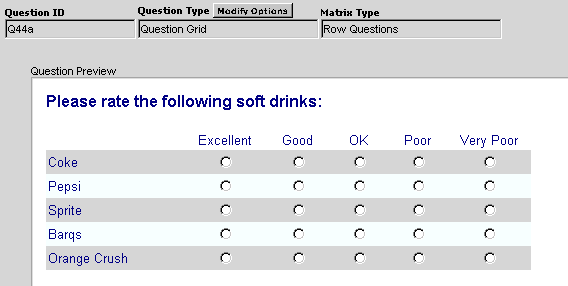
Create Parent Question
The parent question in this example is a multiple selection check box
question.
- Click Select a Question Type>Standard Questions>Multiple Selection Check
Boxes from the Question menu.
- Create your question text and row and column labels using Set
Question Text and Set Answer Options. Click Add
Codes Ascending to assign values to the response options.
- Save this question.
Create Formula Question
- Select Select a Question Type>Formula Question>Add a Formula Type Question>Point
Value from the Question menu.
- Click Build Filter.
- Click the ID of the parent question, Q46a for example.
- Click = as your comparison operator.
- At the bottom of the Filter Wizard, all the possible responses for this
question are displayed. Click 1 to select the first response
option.
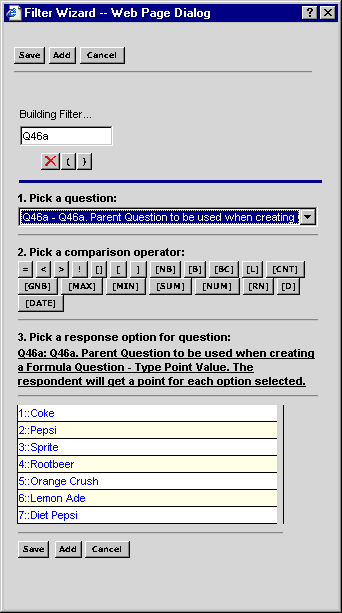
- Enter 1 as the value to generate if this statement
is true.
- Click Save.

- Click add to add the remaining filter values. This
example requires seven filter statements, one for each response option.
- Repeat steps 2 through 8 for the remaining filter statements. For all
response options selected in the parent question, the value 1 is generated.
After all statements have been evaluated, all valid point values are summed. The
result of this function question is equal to this sum of point values.

- Save the question.
Create Follow-Up Question
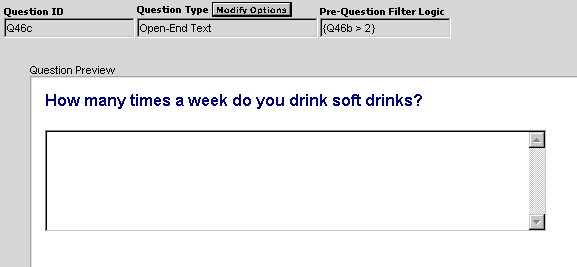
The example below contains a question asking for a
numeric response. This question contains a pre-question filter and is only
displayed if the respondent selected 3 or more responses in the parent question.
- Click Select A Question Type>Standard Questions>Numeric Text
Box from the Question menu.
- On the Question Options screen, click Build Pre-Question
Filter.
-
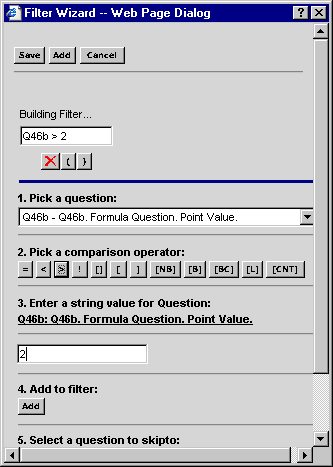
Use the Filter Wizard to complete the filter
statement.
-
Select the previous formula question.
-
Enter > as your comparison operator.
-
Enter 2 as the value for the question.
- Save the question.