Validation filters are used to validate the responses on a page for a question that cannot be handled with the SurveyWriter's built-in functions. This option is generally used when multiple questions are merged onto a single page, and one question's valid answers depends upon its relationship to answers from another question(s) on the same page.
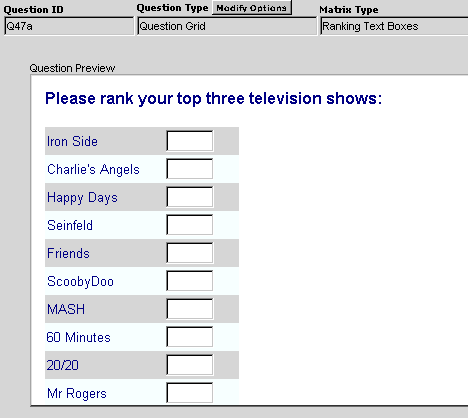
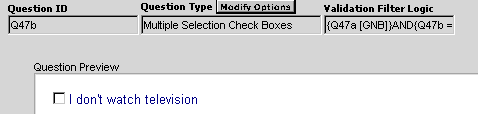
In the following example, a grid question lists ten TV shows and asks respondents to rank their top three favorites. Also displayed is an option that reads "I do not watch television." Since a grid question would not allow for a single response question (such as a radio button or check box that reads "I don't watch Television"), you would need to create two questions and merge them to a single page. The first question is the "Ranking Grid" question, and the second question is a multiple selection check box labeled, "I don't watch television."
Normally, the answers to one question on a page are not validated against the answers to another question on the page. Using the Validation Filters, you could set up a series of rules that would alert the respondent that there is an error if they had answered the "Ranking Grid" question and answered "I don't watch TV".
One of the complications with using this function is that since you are creating your own rules, you must do error trapping to catch other possible respondent errors such as:
In this example, a ranking question is created. Next, a row question is created that contains validation filters. Finally, the two questions are merged onto the same page.
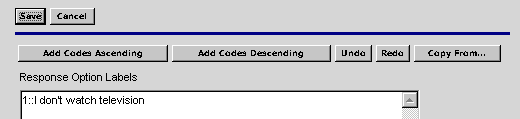
Note: You can enter text directly into the field. Using the Filter Wizard is recommended, however, to eliminate typing errors.
To handle all the possible validation rules, the filter wizard contains Conditional Operators. Several of these operators, the ones with additional explanation next to them, are available in the Filter Wizard for Validation Filters only.
|
|
||
| = | Equals | |
| < | Less than | |
| > | Greater than | |
| ! | Does not equal | |
| [] | Containing | |
| [ | Beginning with | |
| ] | Ending with | |
| [NB] | Not blank | |
| [B] | Blank | |
| [L] | Length | |
| [GNB] | Grid not blank | Checks to see if any answers in a grid row, grid column or an entire grid have been answered. |
| [MAX] | Maximum answer | Checks for the Maximum answer in a grid row, grid column or an entire grid. |
| [MIN] | Minimum answer | Checks for the Minimum answer in a grid row, grid column or an entire grid. |
| [RN] | Rank n Items | Checks to see that only n items have been ranked in a ranking question (for example rank your TOP 3 favorites) |
| [D] | Duplicate answers | Checks to see if there are duplicate answers in a ranking columns (for example 2 items have been ranked 1st) |
|
|
||


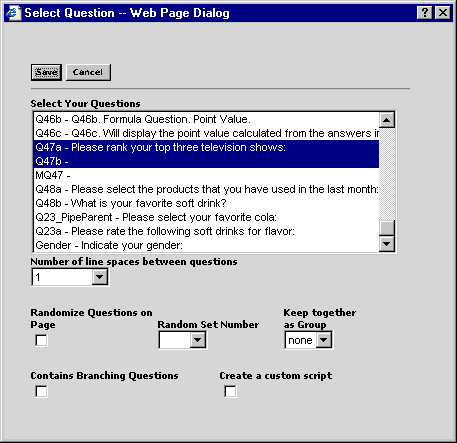
The Merge Question type allows you to take existing questions and place them all on the same page. All attributes and functions still apply to the individual questions. You can easily place as many questions on a single page as you need.
When you are merging questions, the Merge question must always follow the questions you are merging. For example, if you are merging Q1 and Q2 to the same page, set up the Merge question, Q3, after you have created Q1 and Q2.